

Adding a task to the task queue
Operations that require indexing, such as adding and updating documents or changing an index’s settings, will always generate a task. Start by creating an index, then add a large number of documents to this index:taskUid.
You can add documents to a new Meilisearch Cloud index using the Cloud interface. To get the
taskUid of this task, visit the “Task” overview and look for a “Document addition or update” task associated with your newly created index.Monitoring task status
Meilisearch processes tasks in the order they were added to the queue. You can check the status of a task using the Meilisearch Cloud interface or the Meilisearch API.Monitoring task status in the Meilisearch Cloud interface
Log into your Meilisearch Cloud account and navigate to your project. Click the “Tasks” link in the project menu:
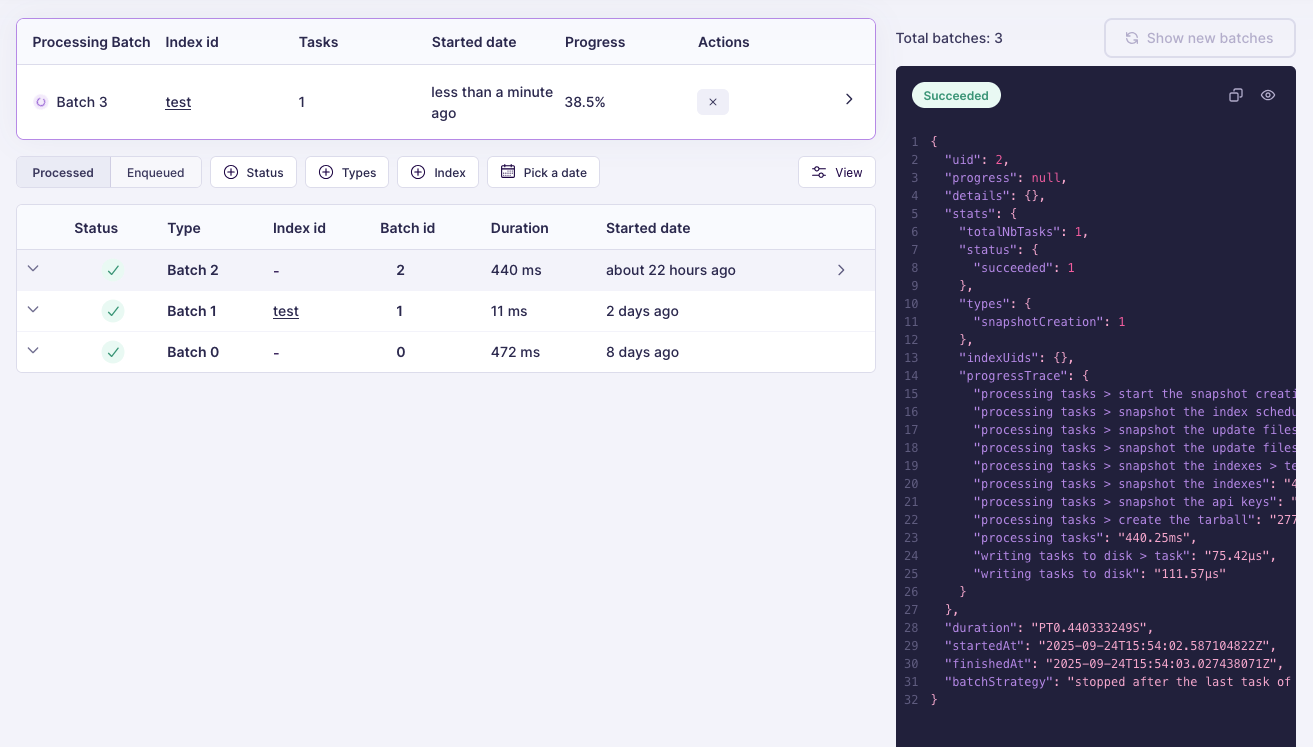
status to succeeded, Meilisearch has finished processing your request.
If the status changes to failed, Meilisearch was not able to fulfill your request. Check the object’s error field for more information.
Monitoring task status with the Meilisearch API
Use thetaskUid from your request’s response to check the status of a task:
enqueued or processing, wait a few moments and query the database once again. You may also set up a webhook listener.
When status changes to succeeded, Meilisearch has finished processing your request.
If the task status changes to failed, Meilisearch was not able to fulfill your request. Check the task object’s error field for more information.
Streaming task updates instead of polling
PollingGET /tasks/{task_uid} works, but it costs a request per check and leaves a gap between a task finishing and your application noticing. Two streaming routes push updates to you instead:
GET /tasks/streamemits a task every time its status changes, so you receive it as it moves throughenqueued,processing, and thensucceededorfailedGET /batches/streamemits a batch on every status change and also on progress updates, which makes it the better choice for following a long indexing run
tasksStreamingRoute flag before using them:
-N so curl does not buffer the stream:
GET /tasks when you need to inspect the past. If your client reconnects, query the task or batch you care about once to resynchronise before relying on the stream again.
Interpreting timestamps and duration
A task object includes three timestamp fields, each formatted as an RFC 3339 date. Each field remains null until the task reaches the corresponding state.
The
duration field is formatted according to the ISO 8601 duration format (for example, "PT1S" for one second). It represents the total elapsed time the task spent in the processing state. Time spent waiting in the queue is not included. duration is null until the task finishes.
The error object
When a task fails, its error field is populated with an object describing what went wrong. For succeeded, enqueued, processing, and canceled tasks, error is null.
Example
error object returned for a failed document addition:
Track tasks with custom metadata
You can attach acustomMetadata query parameter to document operations. This metadata string appears in task responses and webhook payloads, making it easier to track which batch of data triggered a specific task.